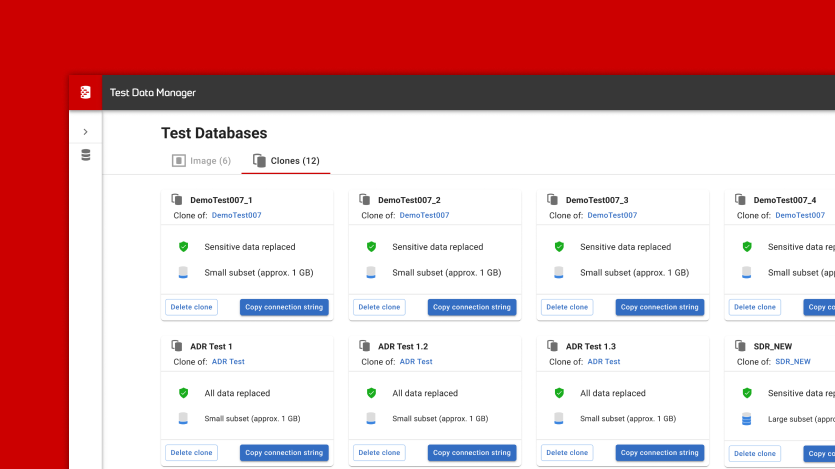
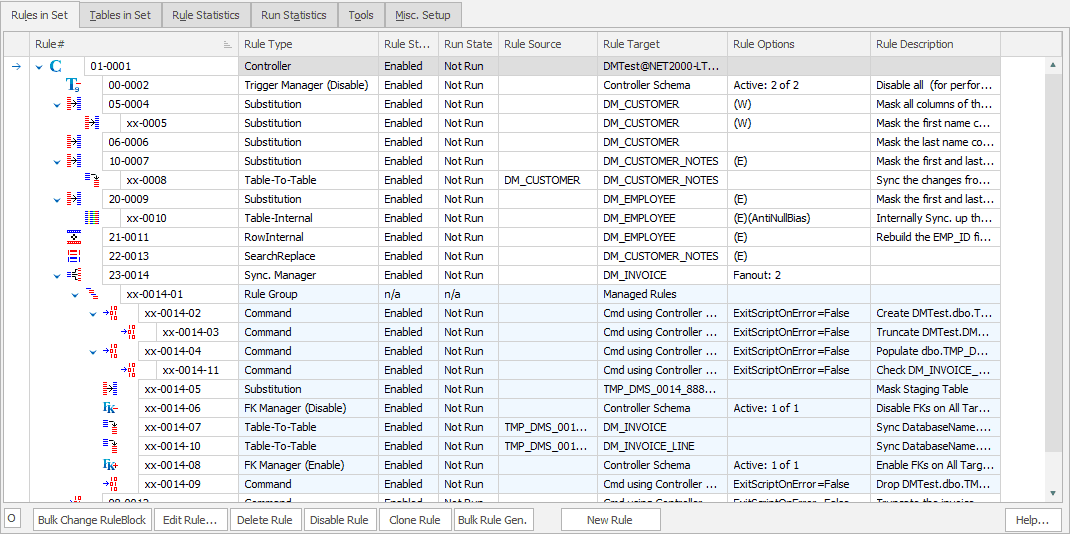
Reduce significant time to provisioning to benefit the users of your non-production databases
“Data Masker provides truly representative copies of the production database which are a fraction of the size of the original, with the sensitive data masked. It also integrates with SQL Data Catalog, which can provide the masking set necessary to protect sensitive data.”
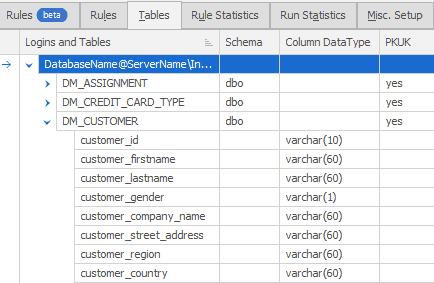
Masking sensitive data across your estate enables you to deliver secure data to downstream environments in non-production databases for development and testing.
Enabling this automatically ensures your data is secure across your organisation – therefore minimising data risk, and ultimately protecting your business.
Protect
Remove sensitive data from your test and development systems
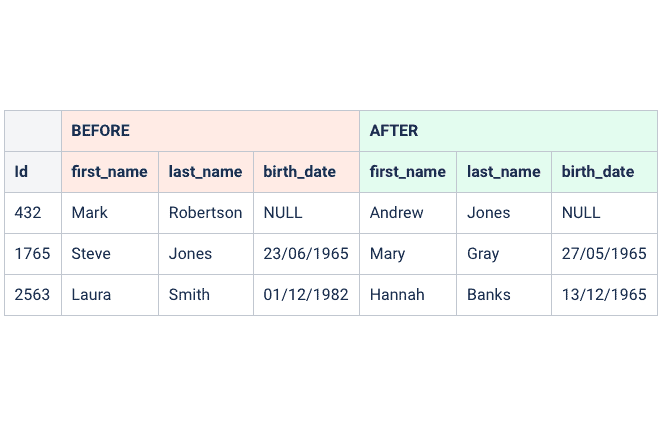
Consistent
System provides realistic data when masking
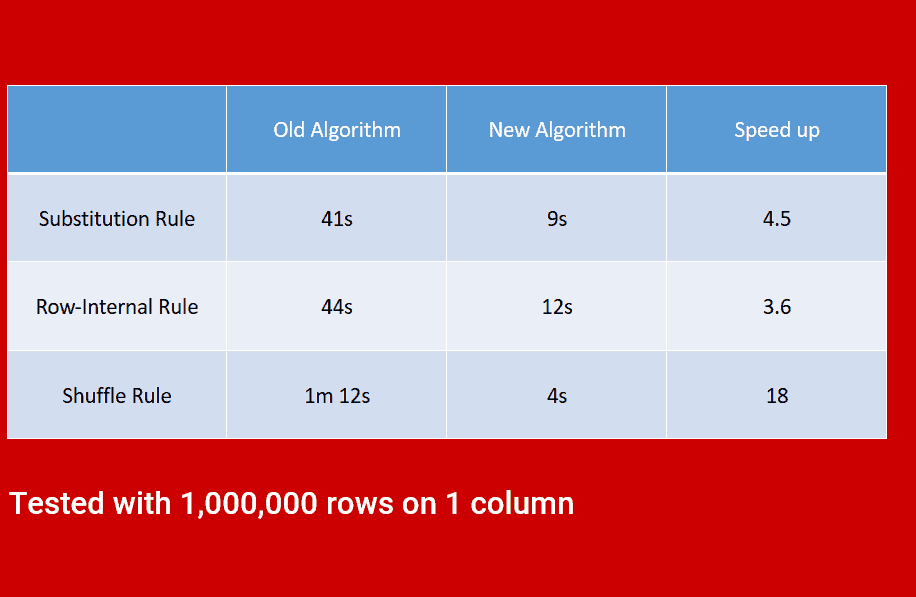
Speed
High performance system, enabling a quicker time to masking
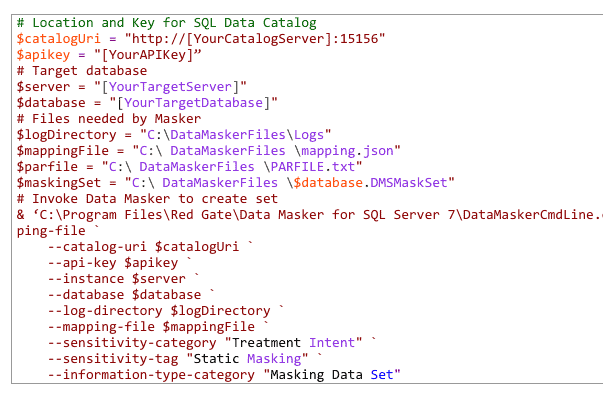
Automate
System enables automated masking for future compliance
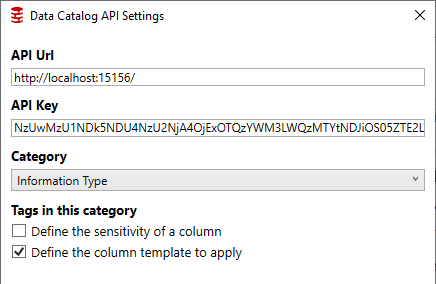
Integrate
Ability to integrate with existing processes with both Data Catalog and Clone products
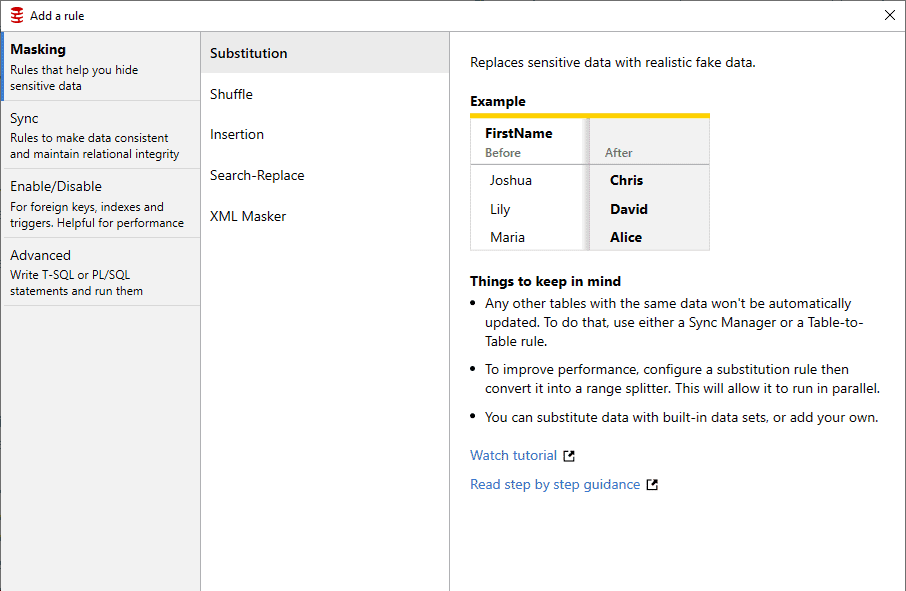
Simple
Ease of use for non-specialist users

University
Learn the basics of Data Masker with self-paced online training courses from Redgate's Microsoft Data Platform MVPs and engineer
Blog
Republic Bank strive to stay ahead of their competitors when it comes to technology, but with over 1900 databases full of sensitive information, they have serious data masking and cataloging requirements.
 Data Masker
Get started with Data Masker
Start masking sensitive data today – build your data masking plan with help from our Support team, and get started with the comprehensive tutorials, sample tables and masking rules included in the fully functional trial.

If you'd like any help, or have a question about our tools or purchasing options, just get in touch.